
Tip & Trick
Struggling to keep your files organized in Microsoft’s ecosystem? Proper file naming conventions save time, reduce errors, and make collaboration seamless. These seven best practices will transform your file management from chaotic to effortless.
Date-based prefix for immediate sorting

Need to track documents by creation date without digging through metadata? A date-based prefix (like 20240515ProjectXDraft.docx) instantly sorts files chronologically in Windows Explorer, SharePoint, or OneDrive—no extra clicks required.
Use YYYYMMDD format (e.g., 20240515 for May 15, 2024) to ensure alphabetical sorting matches chronological order. Pair it with underscores for readability, and avoid spaces or special characters that could break scripts. This method is a lifesaver for legal teams reviewing contracts or accountants auditing receipts.
Perfect for professionals who rely on audit trails or need to prove document timestamps. Start with this convention today—your future self will thank you. ⚡
Project-code abbreviations for team collaboration
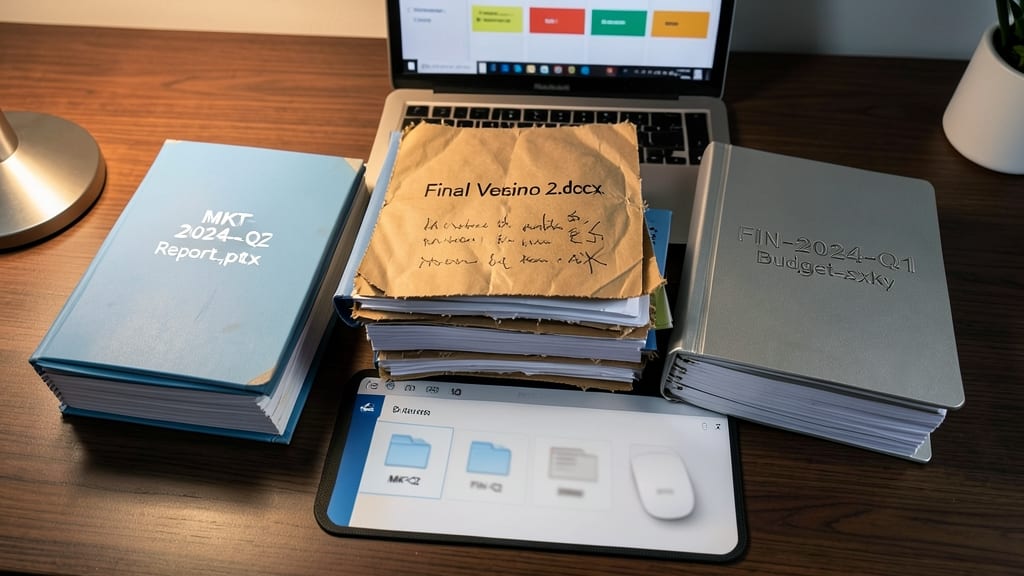
When cross-departmental projects leave your team drowning in a sea of files labeled "FinalVersion2.docx," project-code abbreviations create instant clarity. Instead of guessing whether "Q2Proposal" belongs to marketing or finance, codes like MKT-2024-Q2Report.pptx instantly tell everyone exactly what they’re looking at—and who owns it.
Start with a two-letter department prefix (MKT, IT, HR) followed by a year-quarter structure (2024-Q2) and a descriptive suffix (Report, Draft, Final). This structure works seamlessly in SharePoint, OneDrive, and Teams, where filters can sort by department or project phase. For example, FIN-2024-Q3BudgetRevised.xlsx leaves no room for confusion when shared between accounting and leadership.
This system is a game-changer for agencies, enterprises, or any team juggling multiple projects—especially when files move between departments. Just ensure everyone adopts the same template to avoid chaos. ✨
Version control with suffix numbers
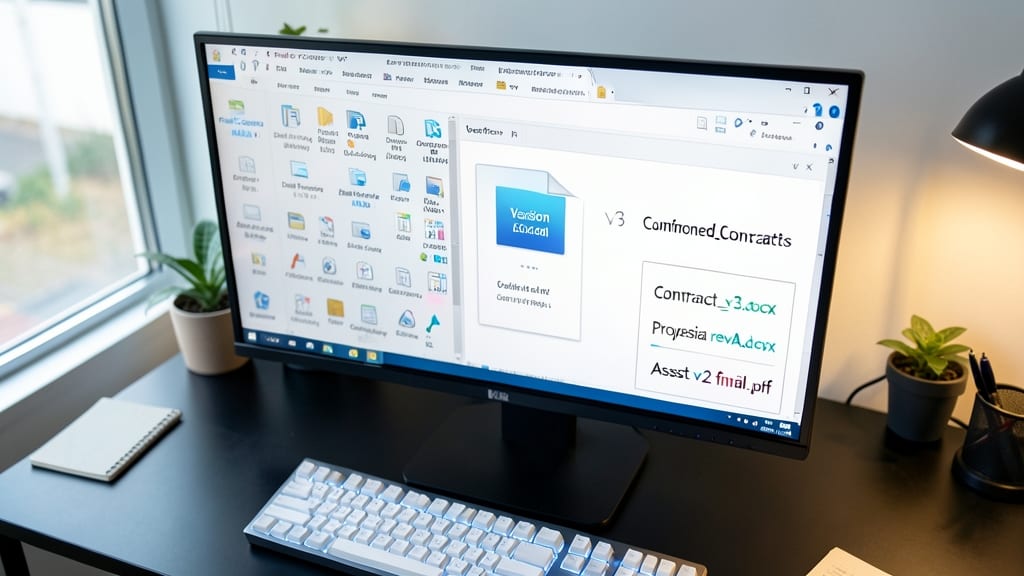
Tired of sifting through "FinalContractFinalv2FINAL.docx" chaos? Suffix numbers like "v3" or "revA" create instant clarity for iterative documents—whether you're tweaking a contract, refining a proposal, or updating creative assets. This method works seamlessly with Microsoft’s version history tools, so you can track changes without guessing which file is the latest.
Start with a clear base name (e.g., "QuarterlyReport") and append v1, v2, or Final as you revise. For creative teams, add Draft, ClientReview, or Approved to streamline feedback cycles. The key is consistency—stick to one format (e.g., vX for versions, _revX for major edits) to avoid confusion. This system integrates perfectly with SharePoint libraries and OneDrive versioning, so you’ll never lose track of edits.
Perfect for legal teams, marketing agencies, or freelancers juggling multiple client revisions. With suffix numbers, every stakeholder knows exactly what they’re reviewing—no more "Which one is the real final?" emails. ✨
File type extensions for clarity

Legacy systems and outdated software still lurk in many workplaces, and they demand one thing above all: file type extensions. Skipping the .docx or .pdf can turn a simple open command into a compatibility nightmare—especially when working with older versions of Microsoft Office or third-party tools.
Always include extensions like Presentation.pptx instead of just Presentation. This isn’t just about aesthetics—it ensures Windows Explorer, SharePoint, and even scripting tools recognize the file type correctly. For IT professionals, this prevents "unknown file format" errors when migrating data between systems or restoring backups from decades-old archives.
Developers and designers benefit most here, as hidden extensions can break automated workflows in PowerShell or Python scripts. Enabling "Show file extensions" in Windows (via Folder Options) is the first step to future-proofing your files. ✨
Keyword-based naming for searchability
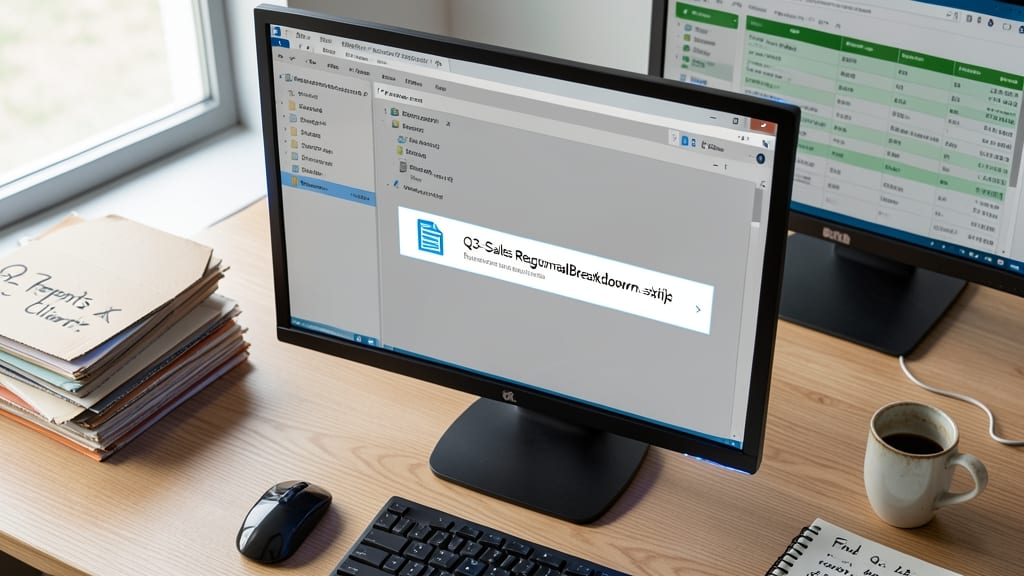
If you spend hours digging through folders for that one report, keyword-based naming could cut your search time by 80%. By embedding descriptive terms like 'Q3SalesRegionalBreakdown.xlsx', you turn filenames into instant filters—perfect for Windows Search or Power Query.
This method works best with underscores (not spaces) for scripting compatibility and consistent capitalization (e.g., 'ProjectX' not 'projectx'). For data-heavy roles, pair keywords with metadata tags in Office files to create a double-layered search system. Microsoft's built-in Power Query even lets you filter by filename patterns directly in Excel.
Data analysts and executives who juggle dozens of reports daily see the biggest wins here—no more sifting through vague names like 'Document3'. Start with 3-5 core keywords per file to maximize searchability without sacrificing readability. ✨
Underscores over spaces for scripting
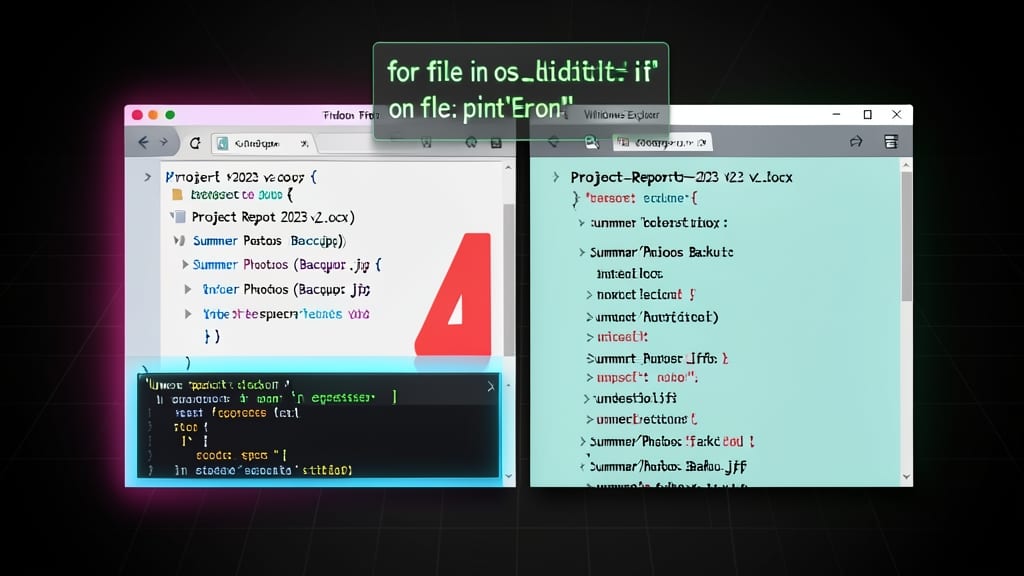
If you’ve ever debugged a script that choked on spaces in filenames, you’ll love this rule: underscores () instead of spaces. Unlike spaces, underscores are universally supported in PowerShell, Python, and batch files, preventing parsing errors in automated workflows.
For example, a filename like Tax2024Form1099.pdf (with underscores) processes flawlessly in scripts, while Tax 2024 Form 1099.pdf (with spaces) can break commands like Get-ChildItem or os.listdir(). This convention also ensures compatibility with Windows command-line tools and Linux/macOS scripts when files are shared across systems.
This is a must for IT admins managing server deployments or developers writing file-processing scripts—where a single misplaced space can derail an entire automation pipeline. ⚡
Client-centric naming for external sharing
When clients ask for "that one file" and you’re drowning in a sea of unnamed documents, client-centric naming becomes your lifesaver. Placing the client’s name first—like AcmeCorpInvoice2024.pdf—creates instant traceability and professionalism, especially for freelancers juggling multiple projects or agencies managing client portfolios.
This approach ensures files are easily searchable in SharePoint or OneDrive by client name, while underscores keep filenames script-friendly. Adding a date suffix (e.g., _2024) further clarifies timelines, and including the file type (.pdf, .xlsx) prevents confusion when sharing across platforms. Microsoft’s Windows Search and Power Query also handle underscored filenames flawlessly.
Freelancers, agencies, and client-facing teams will love how this method automatically organizes files by client—no more digging through generic folders. Perfect for invoices, contracts, or creative deliverables where clarity matters most. ✨