
Tip & Trick
Struggling to master SharePoint as a beginner? These eight game-changing tips will help you navigate Microsoft's powerful collaboration tool like a pro, saving time and boosting team productivity instantly.
Master SharePoint navigation with Quick Launch
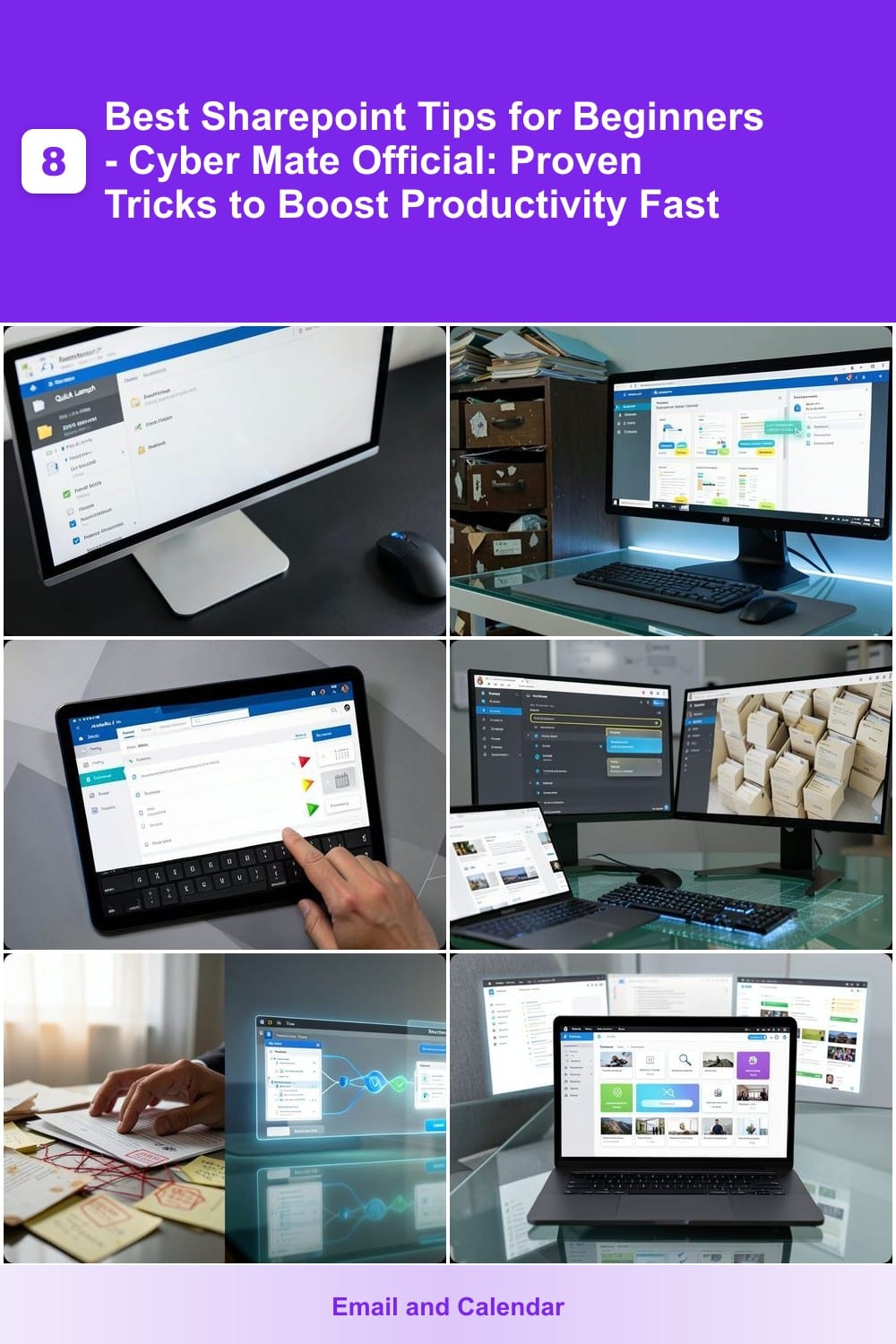
Tired of scrolling through endless SharePoint menus to find what you need? The Quick Launch feature is your secret weapon—turning clutter into a streamlined, personalized navigation hub in seconds.
With just a few clicks, you can pin frequently used sites, libraries, and lists directly to Quick Launch, replacing the default clutter with your own shortcuts. Need to access client contracts weekly? Drag the folder to the top. Working on a project with a specific team? Add their site as a quick link. The modern SharePoint experience even lets you rearrange or hide items, so your menu reflects your workflow—not someone else’s.
This tip is perfect for new SharePoint users who want to skip the learning curve and jump straight to productivity. A well-organized Quick Launch means less time hunting for files and more time getting work done. ✨
Use modern document libraries for simplified file management
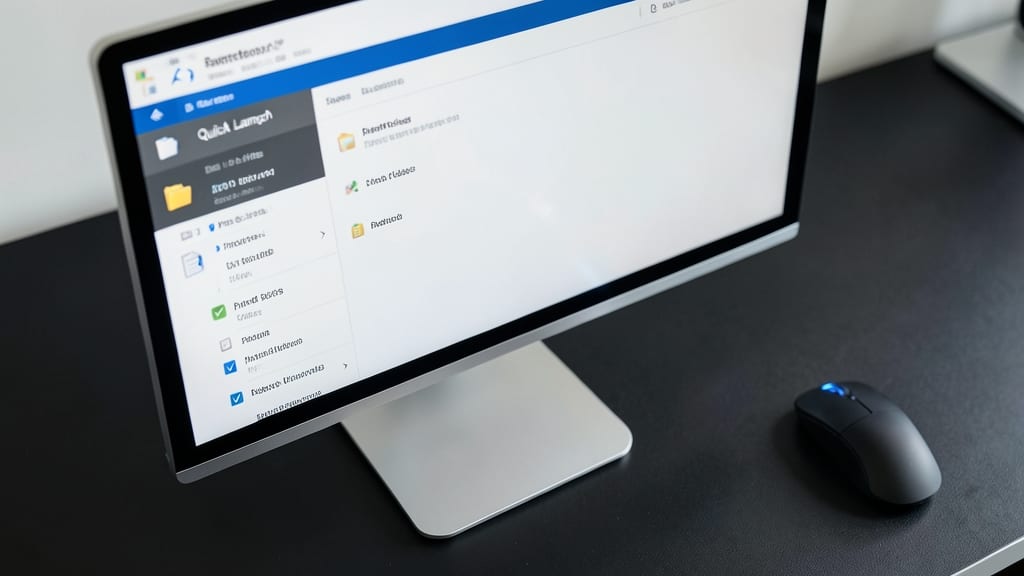
Tired of digging through endless folders just to find that one document? SharePoint’s modern document libraries replace traditional file storage with a smarter, searchable system that keeps everything organized—and recoverable.
Instead of buried folders, these libraries use metadata tags (like author, date, or project name) to categorize files instantly. Versioning automatically saves every edit, so you never lose work, while co-authoring lets multiple team members collaborate in real time. The built-in search even suggests files based on your activity, cutting retrieval time from minutes to seconds.
Perfect for teams managing projects or beginners overwhelmed by file chaos, this feature turns SharePoint into a self-organizing workspace. 💡
Create powerful lists with custom columns
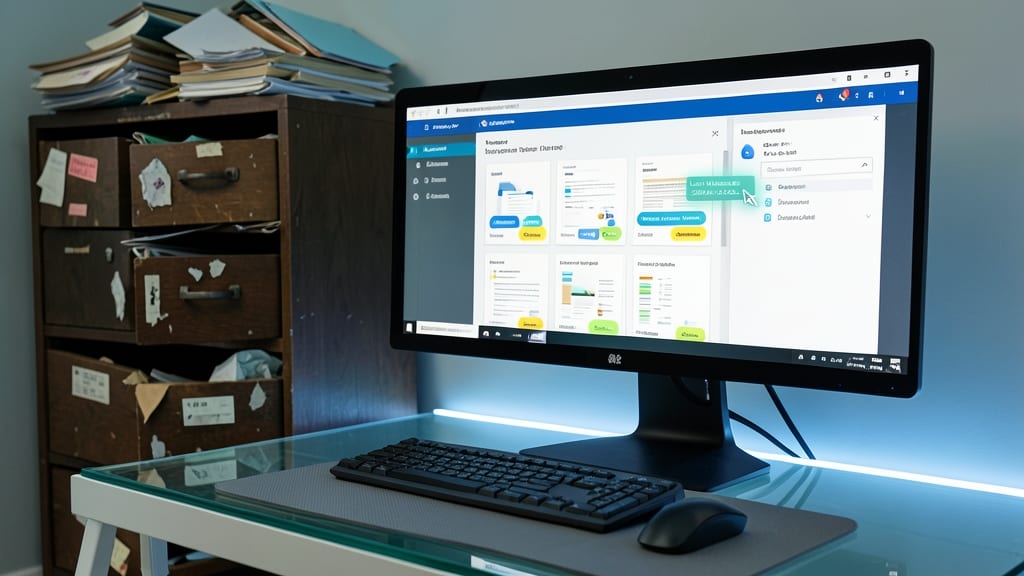
Tired of SharePoint lists that feel like static spreadsheets? Custom columns turn them into dynamic databases that track exactly what matters for your workflows—whether it’s project deadlines, inventory status, or task priorities.
Start by adding column types like choice (dropdowns for status updates), person (assigning owners), or date (deadlines). Use color-coded status indicators to visualize progress at a glance, and filter views to focus on high-priority items. For inventory, add number columns to track quantities or lookup columns to link to related lists—no coding required!
Perfect for project managers, inventory teams, or anyone juggling multiple tasks. With just a few clicks, you’ll replace messy spreadsheets with a self-updating system that keeps everyone aligned. ✨
Leverage SharePoint search for instant document finding
Tired of digging through folders to find that one document? SharePoint’s built-in search is a game-changer when used right—no more guessing or endless scrolling. With the right techniques, you’ll locate files in seconds, even in massive libraries.
Start by refining searches with filters (like date ranges or file types) and refiners (columns like author or department). Use keyword strategies—try phrases in quotes or minus signs to exclude irrelevant results. For example, search "Q3 budget" -draft to skip draft versions. Pro tip: Save frequent searches as search queries for instant recall.
This trick is perfect for teams drowning in documents or remote workers who need quick access. Mastering search cuts hours of frustration weekly—just a few clicks away. ✨
Automate workflows with Microsoft Flow integration

Tired of spending hours on approval chains and manual data transfers? Microsoft Flow bridges the gap between SharePoint and automation, turning repetitive tasks into seamless, rule-based processes with just a few clicks.
With Microsoft Flow, you can set up automated approval workflows for documents, trigger notifications when files are uploaded, or even sync SharePoint data with Excel or PowerApps—all without writing a single line of code. The integration is smooth: connect your SharePoint lists to flows that run in the background, ensuring tasks like expense reports or project updates move forward automatically.
Perfect for team leads or admins managing workflows, this tool cuts down on delays and human error. Start with a simple "when a file is added, send me an email" flow and scale up to complex approval chains. ✨
Organize content with SharePoint hub sites
Tired of jumping between multiple SharePoint sites to find related content? SharePoint Hub Sites solve this by grouping related sites into a single, unified navigation experience—think of it as a "table of contents" for your entire SharePoint ecosystem.
With Hub Sites, you can connect up to 100 associated sites under one roof, featuring a shared navigation bar, news rollup, and consistent branding. This eliminates the need to remember separate URLs or hunt through different locations. The modern design ensures all connected sites appear cohesive, while the search functionality indexes content across all hubbed sites for lightning-fast retrieval.
This tip is perfect for large teams or departments managing multiple SharePoint sites (like HR, Marketing, or IT). It’s also ideal for admins looking to streamline content discovery without overwhelming users. ✨
Use SharePoint mobile app for on-the-go access

Tired of being tied to your desk to access SharePoint files? The SharePoint Mobile App brings full functionality to your pocket, letting you view, edit, and share documents from anywhere—whether you're on a train, in a meeting, or working remotely.
With offline access and real-time sync, you can open Word, Excel, and PowerPoint files directly in the app or via OneDrive integration. The intuitive interface mirrors the desktop experience, so you’ll never feel lost. Plus, push notifications alert you to updates or approvals, keeping you in the loop instantly.
This is a game-changer for remote teams, sales professionals, or anyone who needs to stay productive outside the office. No more waiting until you’re back at your desk—your SharePoint files are always at your fingertips. 💻
Customize SharePoint homepage for personal productivity
Tired of wasting time digging through SharePoint’s default homepage to find your most-used tools? A customized homepage with web parts can turn clutter into a command center—putting your frequently accessed files, tasks, and apps just a click away.
Start by adding the Quick Links web part to pin shortcuts to your go-to sites, then embed a Documents web part to showcase recent or important files. For real-time updates, include the News or Events web part—perfect for tracking deadlines or team announcements. The Search web part ensures instant access to documents without leaving your homepage. With just a few clicks, you’ll create a personalized dashboard that adapts to your workflow.
This tip is ideal for individual contributors who juggle multiple projects or team leads managing shared resources. A tailored homepage cuts down on navigation time, so you spend less scrolling and more getting work done. ✨