
Tip & Trick
Remote work offers flexibility but exposes you to cyber threats like phishing, malware, and data breaches. These 10 security best practices—backed by IT experts—help you create an impenetrable digital fortress at home, no matter your tech skill level.
Use Multi-Factor Authentication Everywhere
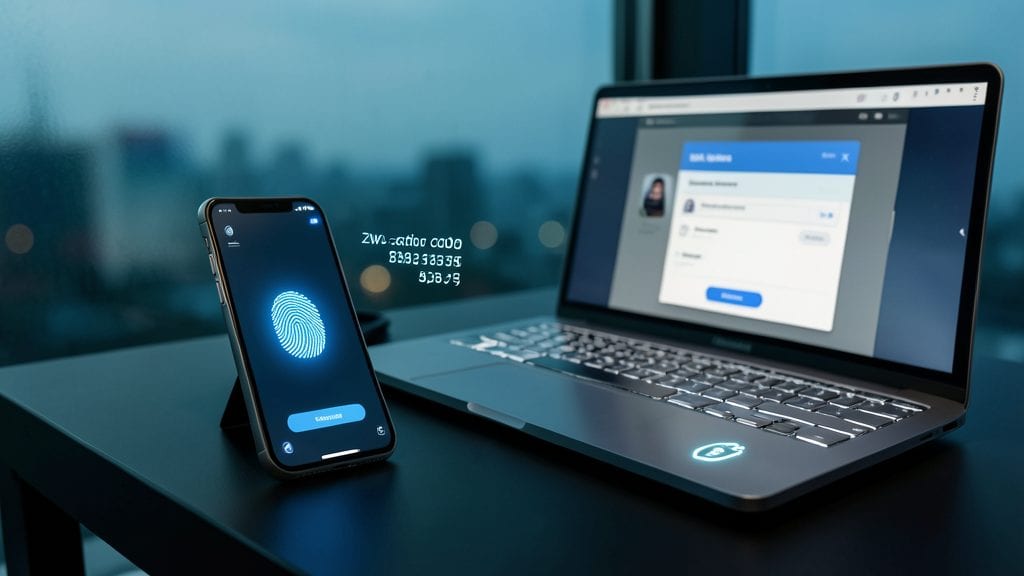
Credential theft is the #1 way hackers break into accounts—yet 90% of breaches could be stopped with multi-factor authentication (MFA). This isn’t just about adding a second password; it’s about making your accounts nearly impossible to hijack without physical access to your device.
Enable MFA on everything: emails (Gmail, Outlook), cloud storage (Dropbox, OneDrive), and VPNs. Most platforms offer SMS codes, authenticator apps (Google Authenticator, Authy), or biometrics—pick the method that fits your workflow. Even if your password leaks, attackers still need your phone or fingerprint to proceed. Studies show MFA blocks 99.9% of automated attacks.
Remote workers, freelancers, and anyone handling sensitive data should prioritize this—it takes two minutes** to set up and saves hours of cleanup later. Start with your most critical accounts today. ⚡
Secure Your Home Wi-Fi Network
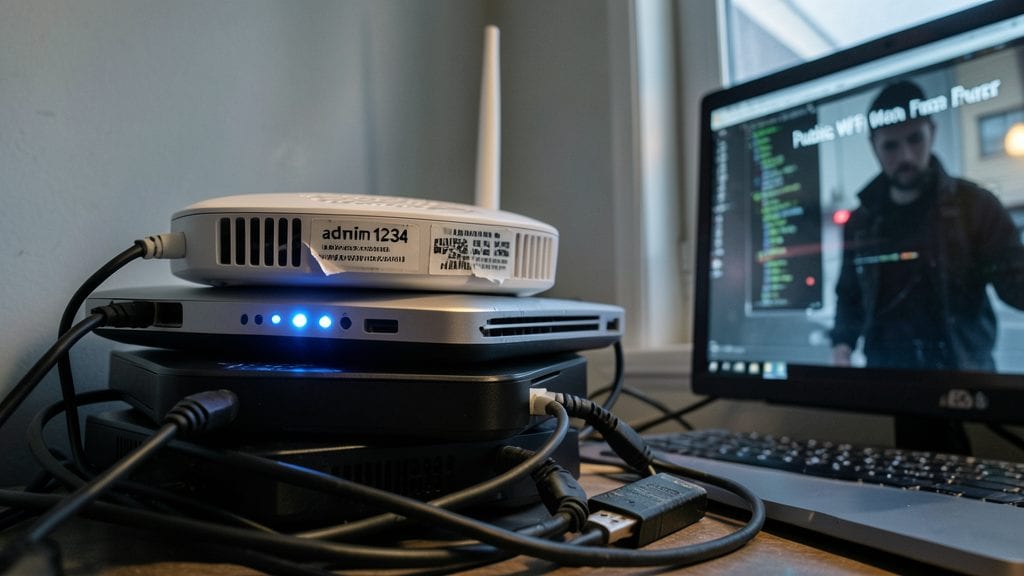
Your home Wi-Fi is the digital front door to your devices—yet most routers ship with default passwords and outdated security that hackers exploit in minutes. A single misconfigured network can expose your laptop, smart home gadgets, and even work files to intruders lurking on public networks nearby.
Start by changing the admin password (not the Wi-Fi password) to something unique and long, then disable WPS (that PIN-based setup is obsolete and easily cracked). Upgrade to WPA3 encryption—the latest standard blocks brute-force attacks that WPA2 can’t. For remote workers, add a guest network with strict time limits to isolate work devices from personal ones.
This is your first line of defense against drive-by hackers and IoT botnets. Freelancers, developers, and anyone accessing company resources should prioritize this—it takes 10 minutes but eliminates 80% of home network risks. 💻
Install and Update Antivirus Software
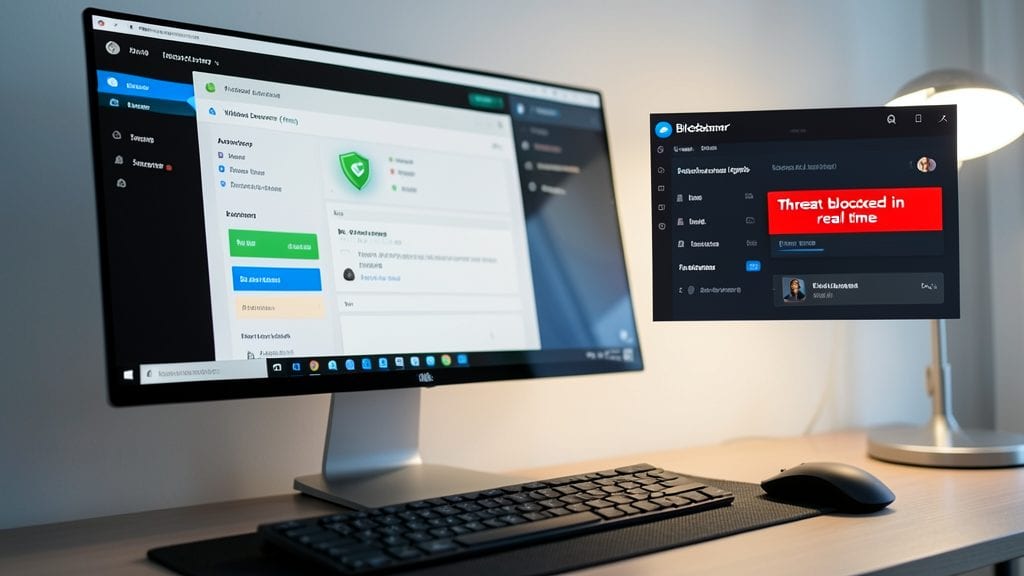
Malware doesn’t wait for you to notice it—Windows Defender (free) or Bitdefender (paid) stops threats like ransomware and spyware in real time, before they even run. Unlike basic firewalls, these tools use behavioral analysis to flag suspicious activity, not just known viruses.
Most modern antivirus suites now offer zero-configuration scans and automatic updates that patch vulnerabilities as soon as they’re discovered—critical for blocking zero-day exploits (attacks targeting unknown flaws). Bitdefender’s multi-layer ransomware shield, for example, locks down files if it detects encryption attempts, while Windows Defender integrates seamlessly with Windows 10/11 for no-performance-hit protection.
This is non-negotiable for remote workers handling sensitive data—healthcare, finance, or freelancers dealing with client files. Even casual users should enable it as a first line of defense against drive-by downloads or malicious email attachments. 💻
Create Strong, Unique Passwords
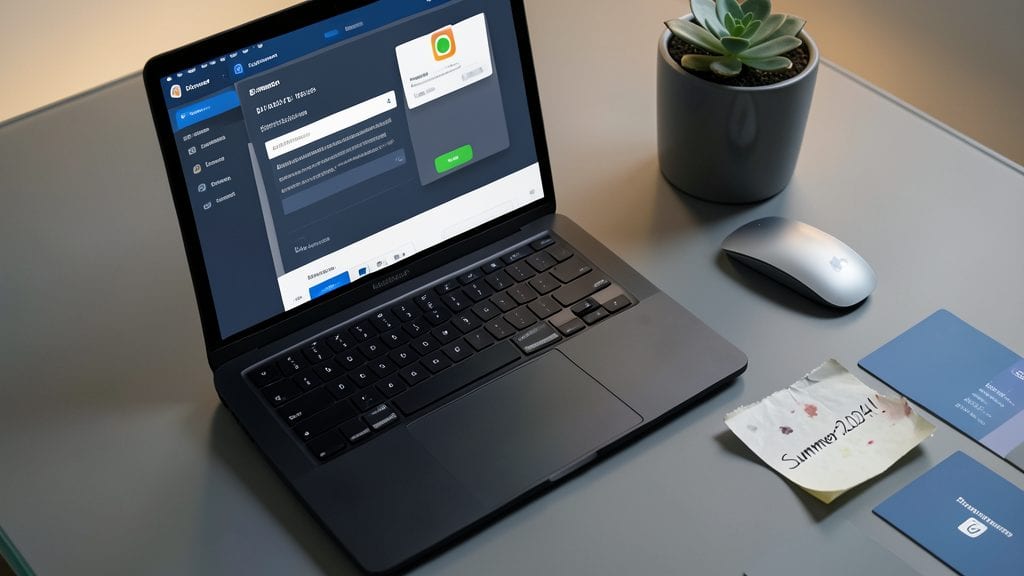
Tired of resetting passwords because you can’t remember them? Bitwarden and 1Password solve this by generating and storing 24-character, randomly complex passwords—no more scribbled notes or weak variations like "Summer2024!" for every account.
These tools automatically fill credentials, sync across devices, and even audit your saved passwords for weaknesses. Bitwarden is open-source and free, while 1Password offers advanced features like travel mode (clearing local data when crossing borders). Both reduce breach risks by 90%+ when used consistently.
Perfect for remote workers juggling personal and work accounts—especially those who hate typing passwords or fear data leaks. 💡
Enable a Virtual Private Network
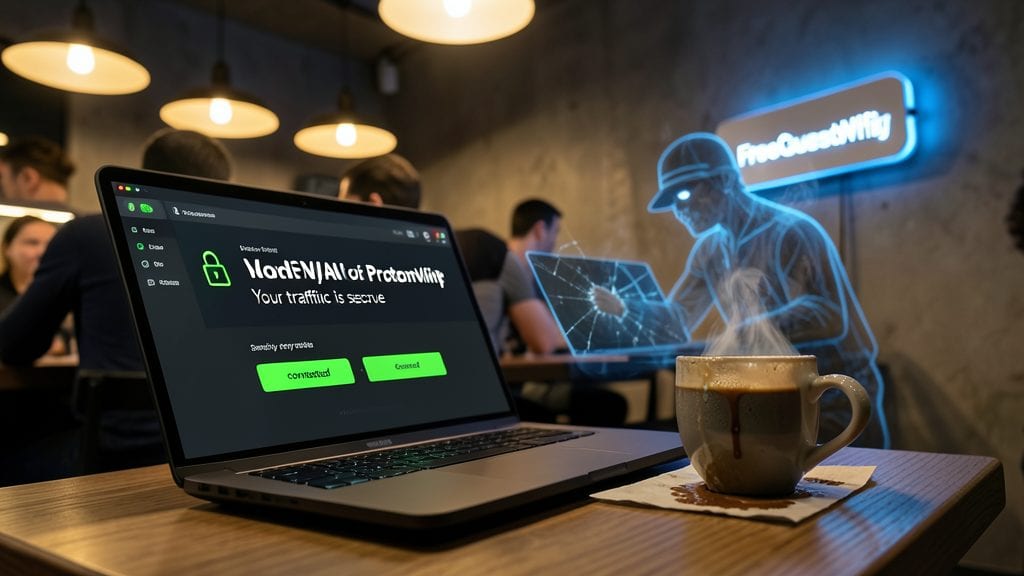
Public Wi-Fi at coffee shops or airports is convenient—but also a hacker’s playground. A VPN like NordVPN or ProtonVPN masks your IP address, encrypts all traffic, and routes it through secure servers, making it nearly impossible for snoops to intercept your data.
These services offer military-grade encryption (AES-256), no-logs policies, and server locations worldwide—ideal for accessing company resources remotely. NordVPN’s Threat Protection blocks malicious ads and trackers, while ProtonVPN prioritizes Swiss privacy laws. Both support split tunneling, letting you secure only work traffic while keeping local browsing fast.
Remote workers, freelancers, and travelers benefit most—especially when connecting to untrusted networks. Enable it now and browse with confidence, knowing your data stays private. ✨
Lock Down Your Webcam
Your webcam might be the most overlooked security risk in your home office. Hackers can exploit unsecured cameras to spy on you during video calls, steal sensitive data, or even blackmail you—all without leaving a trace.
Start with a physical cover (like the 3M Privacy Filter or Lapwing Labs Webcam Cover) when not in use—these block light and prevent remote access. For software solutions, tools like OBS Studio let you disable the camera entirely during meetings, while browser extensions like uBlock Origin can block malicious scripts that hijack webcams. Even your smartphone’s camera app has a privacy shutter feature—enable it when storing devices.
This is a no-brainer for remote workers, freelancers, or anyone handling sensitive discussions. A few seconds of setup now could save you from a nightmare later. 💻
Secure Your Cloud Storage
Your cloud storage holds more than just photos—financial records, contracts, and personal data could be exposed if compromised. Most providers encrypt files in transit and at rest, but that’s not enough for truly sensitive files.
Tools like Boxcryptor or Cryptomator add client-side encryption, meaning your files are locked before they ever leave your device. For Google Drive, enable "Vault" mode in Boxcryptor to create a hidden, encrypted folder—only you’ll have the decryption key. This works seamlessly with Dropbox, OneDrive, and even iCloud, giving you peace of mind without sacrificing convenience.
Ideal for freelancers, healthcare workers, or anyone handling confidential data—this ensures even if your cloud provider’s servers are breached, your files stay unreadable. 🔧
Recognize Phishing Attempts Instantly
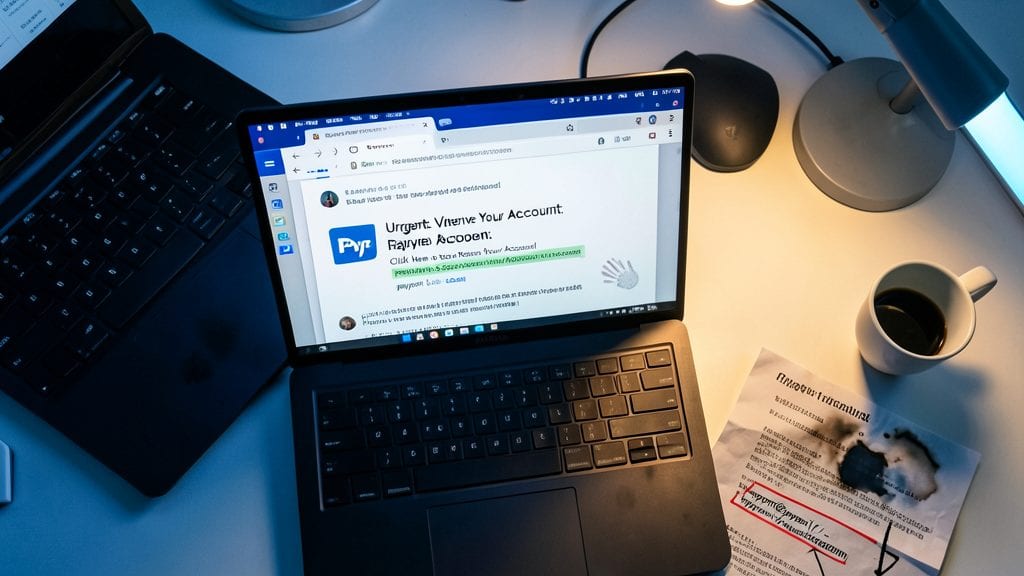
Phishing emails are the #1 way hackers breach accounts—yet most fake messages slip through because they look almost legitimate. The key to spotting them? Three simple habits: hover over links to check the real URL, verify sender email addresses (watch for typos like "paypa1.com" instead of "paypal.com"), and never open unexpected attachments, no matter how urgent the request seems.
Most phishing emails trigger three red flags: suspicious sender domains, generic greetings like "Dear User," or urgent demands ("Your account will be locked!"). Tools like Gmail’s built-in phishing detection or Microsoft Defender for Office 365 help, but your eyes are the first line of defense. Even a 5-second pause before clicking can prevent a data breach.
This skill is critical for freelancers, executives, and anyone handling sensitive data—one click can expose your entire network. Start by forwarding suspicious emails to your IT team or reportphishing@apwg.org to help others stay safe. 💡
Use a Dedicated Work Device
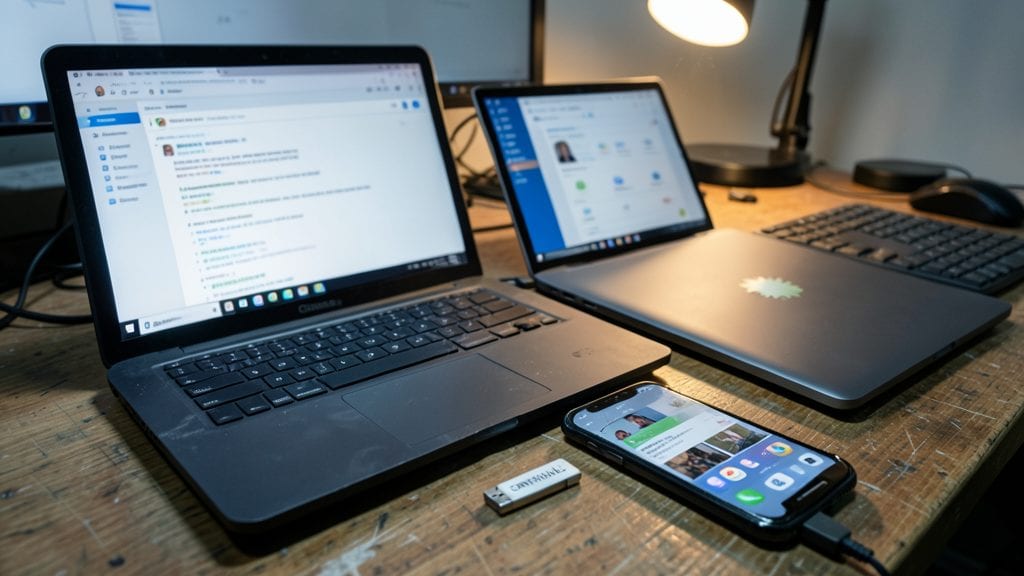
Your personal phone or laptop is the last line of defense—but also the biggest security risk. When work and personal data mix, a single breach can expose company files, client data, or proprietary tools to hackers.
Solving this with a dedicated work device (even a cheap Chromebook or second-hand laptop) creates a hard firewall between your professional and personal life. IT departments often enforce this via Mobile Device Management (MDM) tools like Microsoft Intune or Jamf, which wipe company data remotely if the device is lost or stolen. For freelancers or small teams, Bitdefender GravityZone or CrowdStrike offer similar protection without corporate overhead.
This approach is ideal for anyone handling sensitive data—contractors, HR staff, or developers. Even a $200 refurbished Windows machine with Windows Hello (biometric login) and BitLocker encryption beats risking your personal device. 💻
Regularly Backup Critical Data
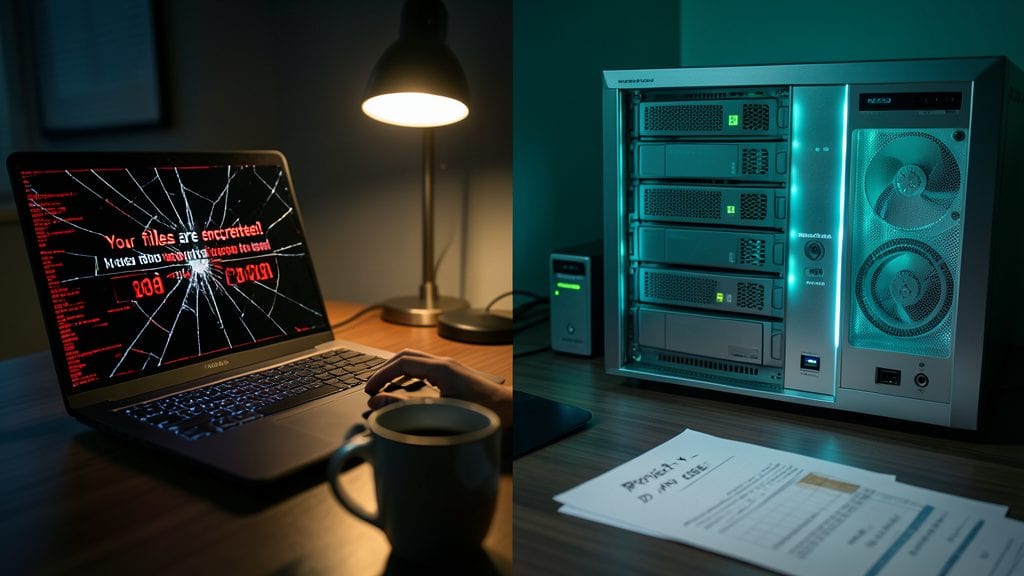
Ransomware attacks can cripple your work in minutes—automated backups are your secret weapon to restore files without paying cybercriminals. Unlike reactive security tools, backups act as a safety net, ensuring critical documents, projects, or financial records remain accessible even if your system is locked.
Services like Backblaze or CrashPlan offer unlimited encrypted storage with continuous, automatic syncing, while hardware solutions like Western Digital My Passport provide 256-bit AES encryption for offline redundancy. Schedule backups to run nightly, and test restores monthly to confirm your data is recoverable when you need it most.
This is non-negotiable for freelancers, small business owners, or anyone handling sensitive work files. One backup isn’t enough—combine cloud and external drives for true redundancy. ✨