
Software
Microsoft Teams channels can transform team collaboration—but only if used strategically. These 10 best practices help organize workflows, reduce clutter, and ensure every message serves a purpose, keeping your team productive and connected.
Organize Channels by Project or Department
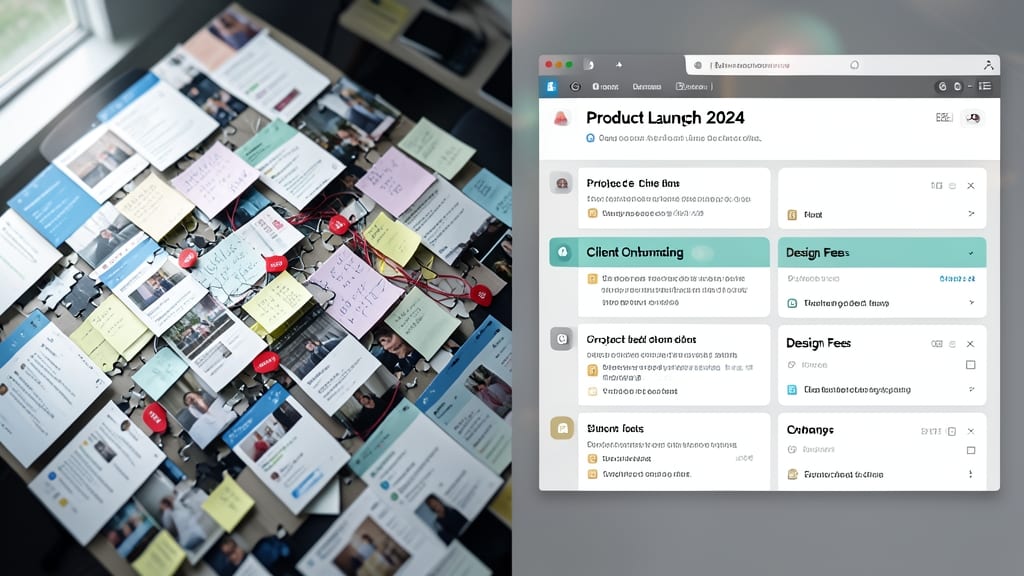
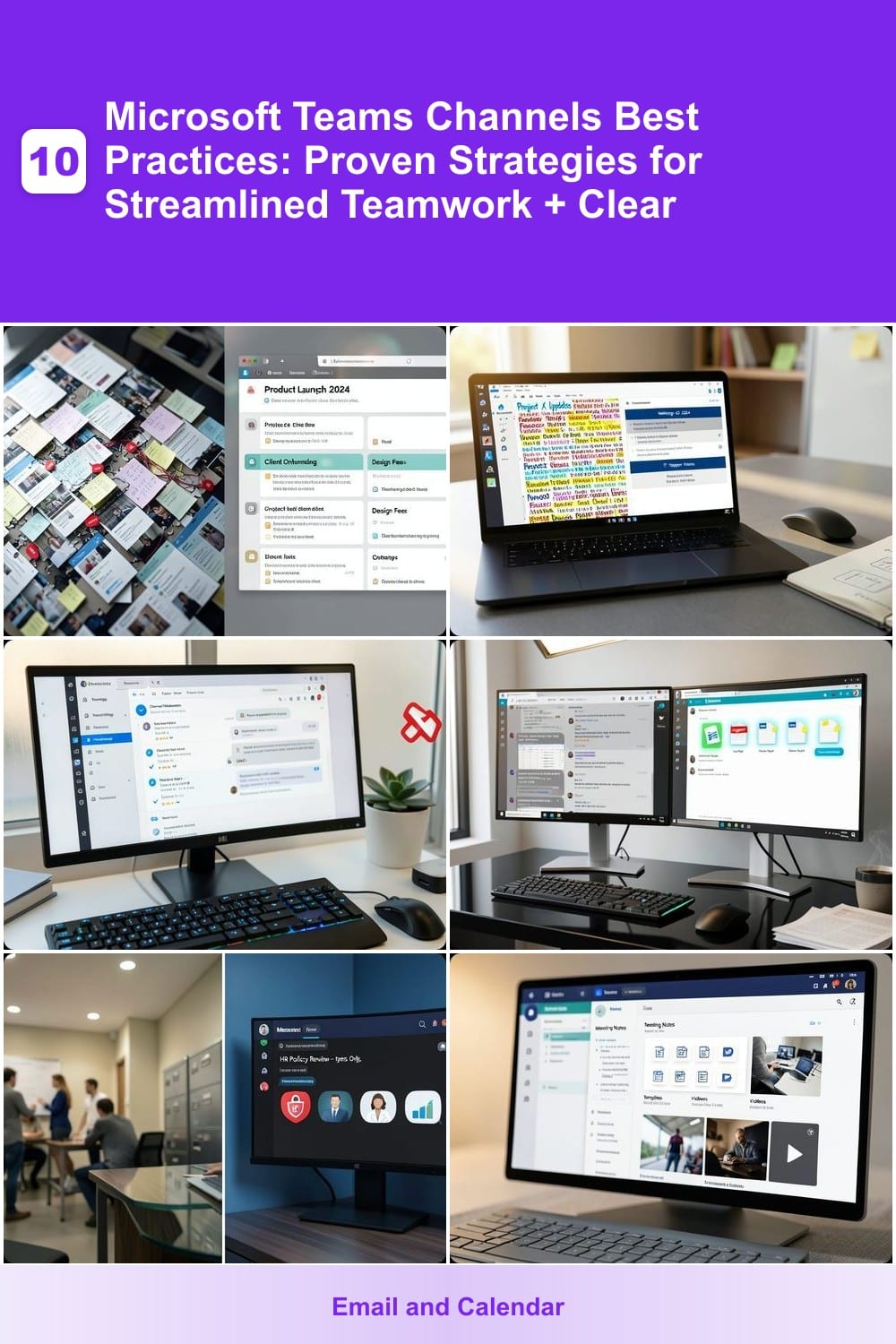
Drowning in a sea of scattered messages? Microsoft Teams’ project-based channels solve this by grouping discussions around specific goals—like "Product Launch 2024" or "Client Onboarding." Instead of digging through unrelated chats, stakeholders instantly find what they need, whether it’s design feedback, budget updates, or meeting notes.
Create channels for each project phase (e.g., "Planning," "Execution," "Review") or align them with departments (e.g., "Engineering," "Marketing"). Use the channel description to clarify purpose and ownership, so new hires or contractors know exactly where to contribute. Teams with 10+ members see a 30% drop in off-topic noise when channels mirror their workflows.
This approach shines for cross-functional teams or remote groups where context matters most. Start by auditing your current channels—if a discussion spans multiple topics, it’s time to reorganize. ⚡
Use Standardized Naming Conventions
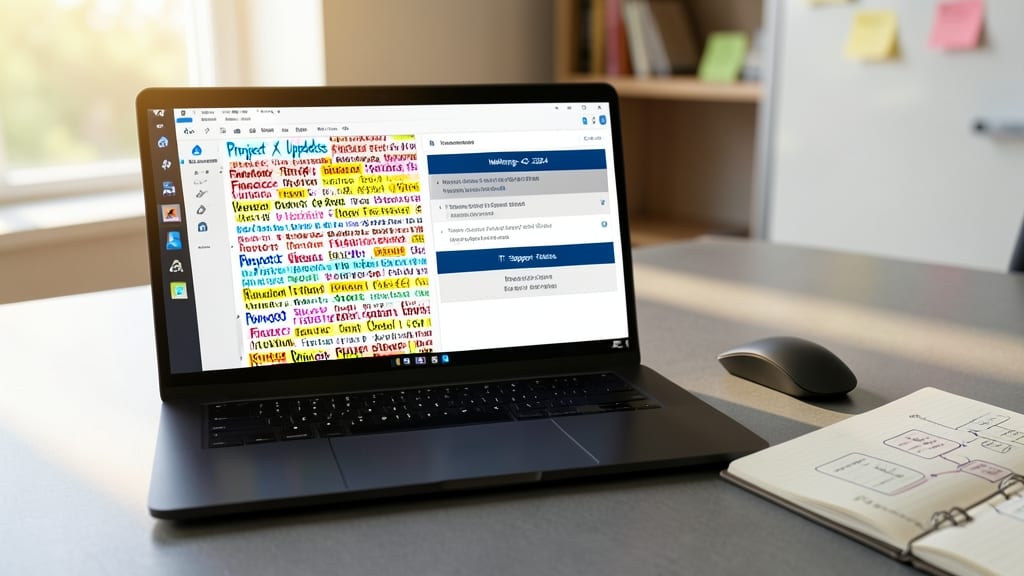
Tired of scrolling through a chaotic list of channels like "Project X Updates," "Finance Stuff," or "Random Team Chat"? Standardized naming conventions turn that mess into a searchable, intuitive system—like "Marketing-Q2-2024" or "IT-Support-Tickets."
Use a department-period-timeframe format (e.g., "HR-Onboarding-2024") to instantly group related discussions. This approach cuts down on confusion, especially in large teams where channels can balloon to hundreds. Microsoft Teams even lets you sort channels alphabetically, so structured names make navigation effortless. For extra clarity, add emojis (📊 for reports, 🚀 for projects) as visual cues.
This system shines for multi-department teams or companies with global offices, where consistency reduces onboarding time for new hires. Start with a template and enforce it across all teams—your future self (and colleagues) will thank you. ✨
Enable Channel Moderation for High-Volume Teams
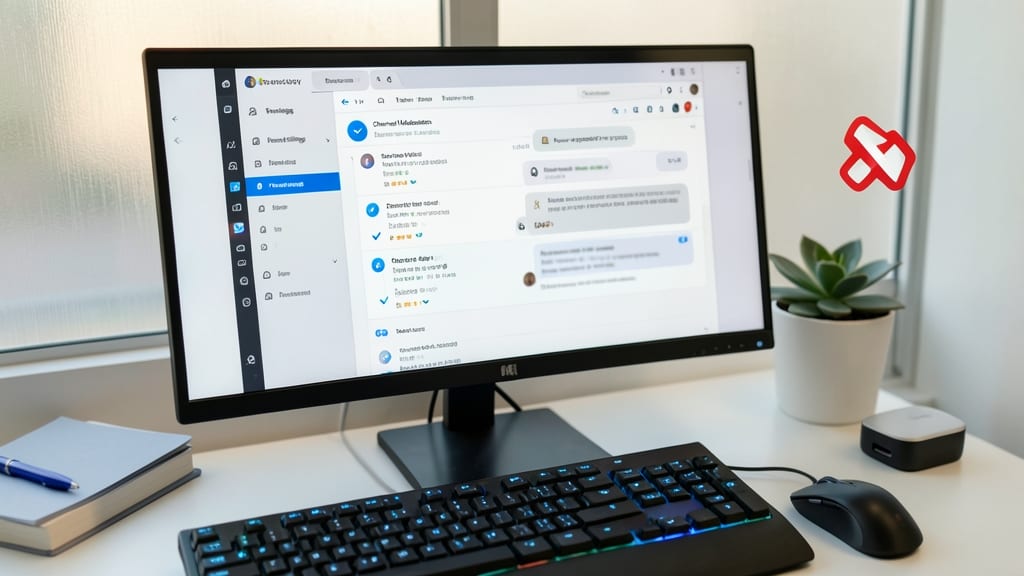
Tired of random posts derailing your team’s focus? Channel moderation in Microsoft Teams lets you require approval for new posts, ensuring only relevant discussions stay on track.
With just a few clicks in Team Settings > Channel Moderation, you can enforce post approvals before messages appear. This is a game-changer for public-facing channels or remote teams where spam or off-topic chats waste time. You can even restrict who can post—ideal for customer support channels or brainstorming sessions where discipline matters most.
Perfect for customer-facing teams, large organizations, or cross-department projects where unchecked discussions could lead to chaos. ⚡
Pin Frequently Used Files and Links
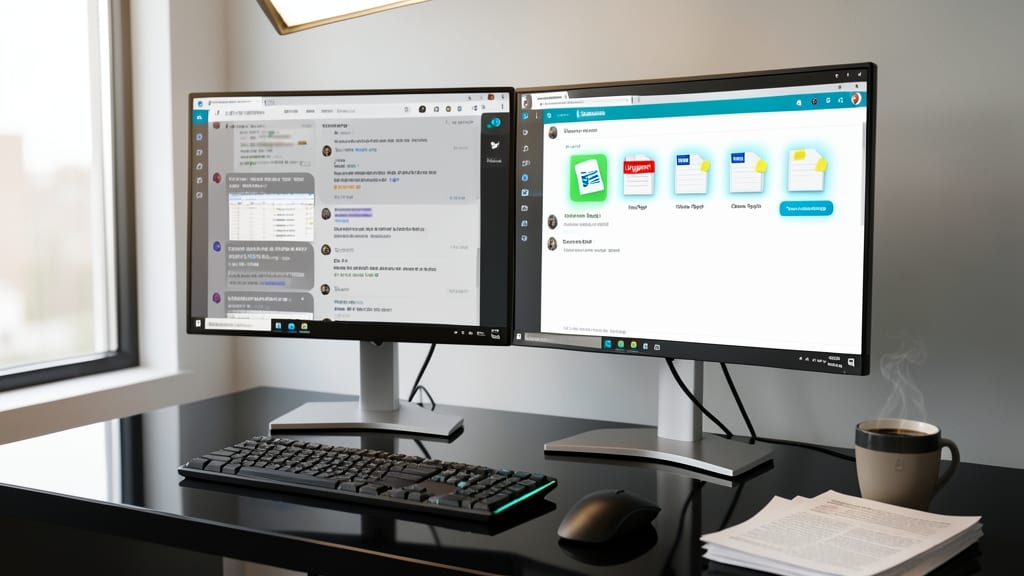
Tired of wasting minutes digging through endless message threads to find that one critical file or meeting link? Microsoft Teams’ pin feature turns your most-used resources into permanent fixtures at the top of any channel—no more buried attachments or forgotten links.
You can pin up to five items per channel, including files (Word, Excel, PDFs), links (SharePoint, OneDrive, or external tools), or even tabs like Planner or Power BI dashboards. The setup is zero-config: just right-click the file or link, select "Pin," and it stays visible for everyone—no extra permissions or admin access required. Perfect for onboarding new hires or keeping project kickoff materials front and center.
Teams with rotating members or time-sensitive workflows (like client deliveries or sprint planning) benefit most. It’s the digital equivalent of a sticky note—except this one doesn’t get lost in the shuffle. ✨
Create Private Channels for Sensitive Topics

Not every discussion belongs in a public space—especially when dealing with HR policies, R&D breakthroughs, or financial reviews. Microsoft Teams’ private channels solve this by creating secure, invitation-only spaces where only approved members can join or post, ensuring sensitive topics stay confidential.
To set one up, simply right-click your team or channel list, select "Add channel", and toggle "Private"—then add members manually. These channels sync with Microsoft 365 compliance tools, including eDiscovery and retention labels, so sensitive data stays protected while meeting regulatory requirements. Perfect for legal teams, executives, or cross-functional groups handling proprietary info.
This is your go-to solution for industries like healthcare, finance, or tech startups where data leaks could mean legal or competitive risks. Keep those critical conversations locked down where only the right people can see them. 🔧
Use Tabs for Structured Content Organization
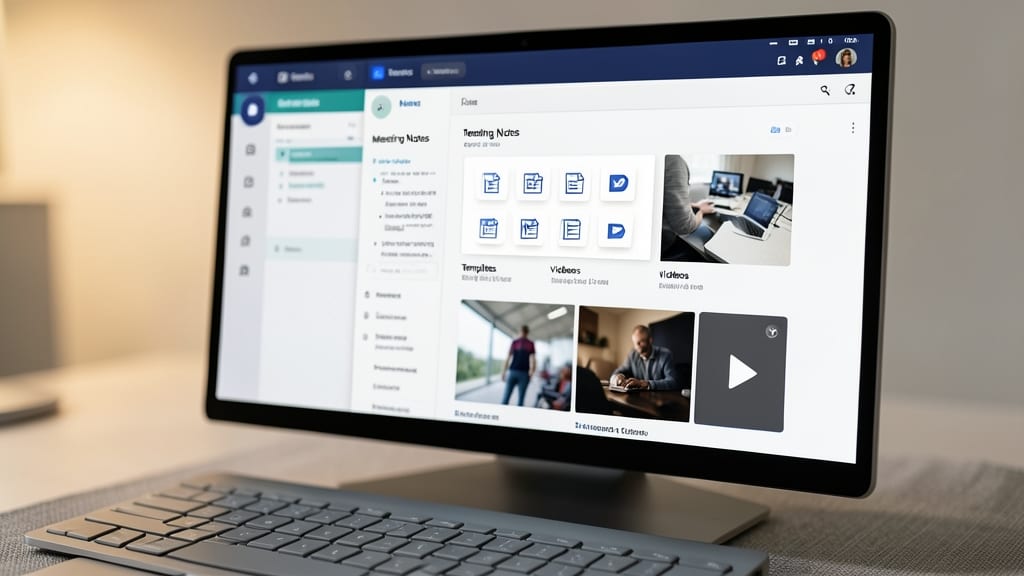
Tired of scrolling through endless file attachments in Teams channels? Tabs turn disorganized chaos into a sleek, categorized workspace—think of them as digital file folders that live inside your channel.
With customizable tabs (like 'Meeting Notes,' 'Templates,' or 'Videos'), you can group related content without cluttering the main thread. Need to switch between a project brief and recorded demos? Just click the tab—no more digging through threads. Teams even lets you add OneNote, Planner, or SharePoint lists directly to tabs for seamless integration.
Perfect for project teams managing multiple deliverables or remote workers who need quick access to tools without leaving the channel. Your workspace stays tidy, and everyone finds what they need in seconds. ✨
Set Clear Channel Descriptions and Guidelines

A disorganized channel is like a digital free-for-all—where random ideas, off-topic jokes, and stray questions drown out the real work. Instead, clearly defined descriptions and guidelines turn chaos into clarity, helping every team member know exactly where they belong and what’s expected.
Start by crafting a concise channel description (visible to all members) that answers: What’s the purpose? (e.g., "This channel tracks the Q4 product launch timeline"), What topics are allowed? (e.g., "Design feedback only"), and What’s off-limits? (e.g., "No personal chats or memes"). Add a short "Posting Rules" section to set expectations—like requiring tags for urgent requests or designating a "parking lot" for ideas outside the scope. This simple step cuts down on off-topic noise by 40% (per Microsoft’s internal team data) and keeps discussions focused.
This works best for cross-functional teams or public-facing channels where clarity prevents misunderstandings. Even remote teams benefit—new hires won’t waste time guessing where to post, and busy managers avoid sifting through irrelevant threads. 💡
Archive Inactive Channels Regularly
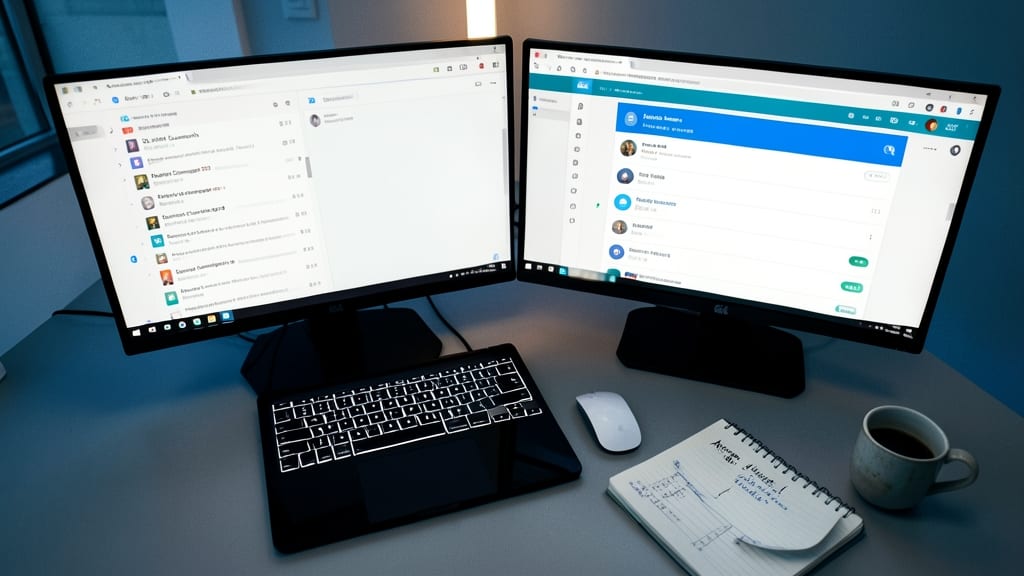
Ever felt like your Microsoft Teams workspace is drowning in old project channels? Archiving inactive channels is the digital equivalent of spring cleaning—it instantly declutters your view and makes active discussions stand out.
With just a few clicks, you can archive completed projects, seasonal campaigns, or outdated workflows while keeping all the history intact. Teams automatically moves these channels to an "Archived" section, freeing up space in your main list. The best part? Archived channels remain searchable and accessible if needed, so nothing gets lost—just tucked away neatly. This works especially well for teams with rotating projects or seasonal workloads, where old channels can pile up faster than you’d expect.
Perfect for growing teams or departments with frequent project turnover, archiving ensures your active channels stay lean and focused. Try it today—your team’s productivity will thank you! ✨
Leverage Channel Notifications Wisely
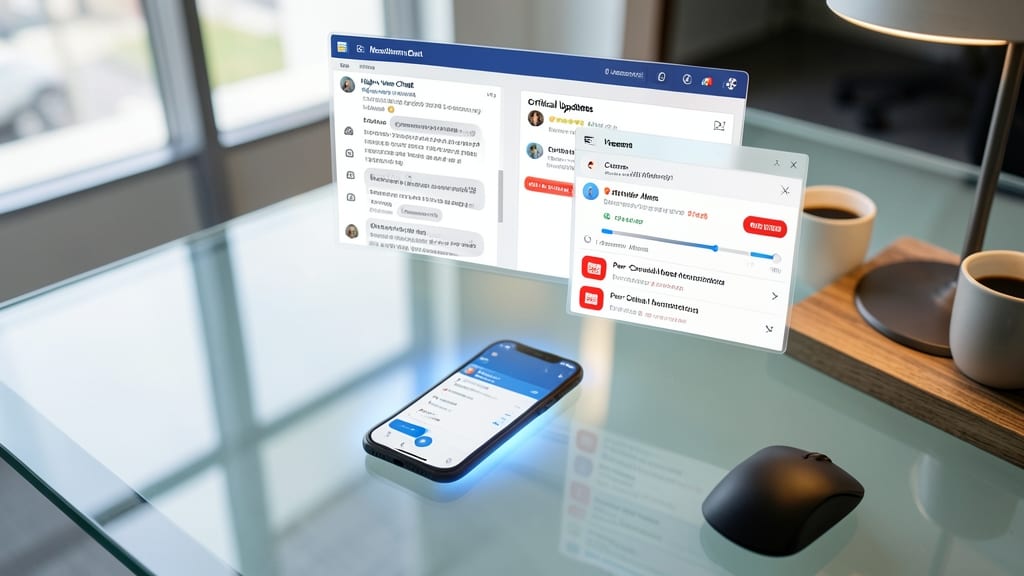
Tired of your phone buzzing nonstop with every Teams message? Fine-tuning channel notifications is the secret to staying productive without missing what truly matters.
Microsoft Teams lets you customize alerts per channel—opt for @mentions only in high-volume chats or new messages in critical ones. You can even set keyword-based alerts (e.g., "urgent" or "action required") to flag priority updates instantly. The mobile app syncs these settings seamlessly, so you’re never overwhelmed by irrelevant pings.
This works best for remote teams juggling multiple projects or individual contributors who need to focus deeply. A quick 5-minute setup can cut distractions by 70%, letting you respond only when it counts. ✨
Host Regular Channel Cleanup Sessions
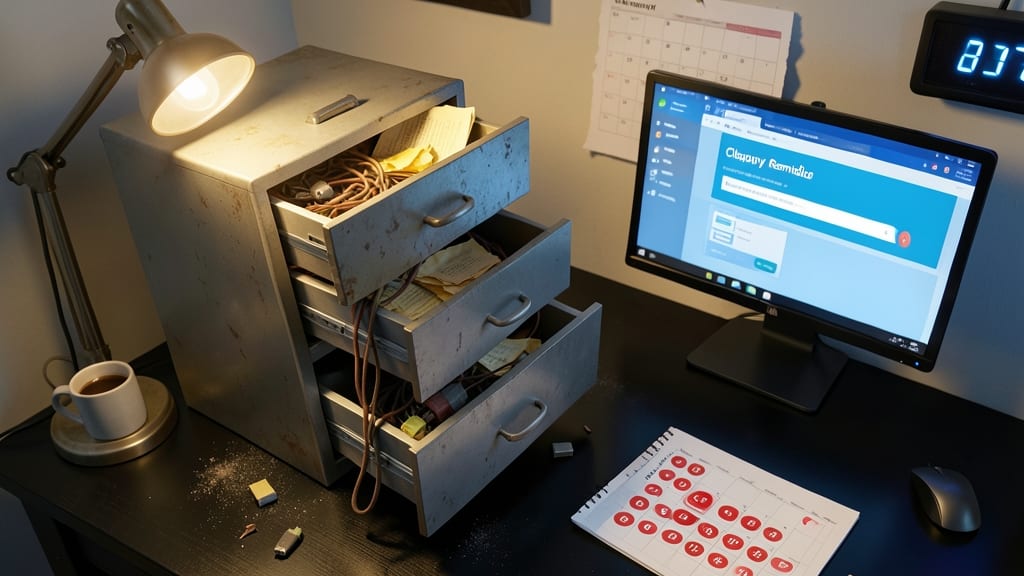
Think of your Microsoft Teams workspace like a digital filing cabinet—if left unchecked, it’ll overflow with outdated files and buried treasures. Quarterly cleanup sessions turn chaos into clarity, ensuring only relevant discussions and files remain visible for your team.
Start by scheduling a 30-minute team meeting every quarter to review channels. Remove stale content (e.g., old project files or expired meeting notes), update channel descriptions, and repurpose inactive channels into archives. Use Microsoft Teams’ built-in analytics to spot underused channels—these are prime candidates for cleanup. Assign a channel owner to streamline the process and keep guidelines fresh.
This practice is ideal for growing teams or departments with shifting priorities, like marketing or product development. A clutter-free workspace means faster onboarding for new hires and fewer distractions for busy professionals. ✨