
Software
Struggling with slow browsing, cluttered tabs, or Edge’s hidden features? These seven expert-approved Microsoft Edge tips will transform your browsing experience—boosting speed, security, and productivity in minutes without technical hassles.
Enable Immersive Reader for Focused Content Consumption
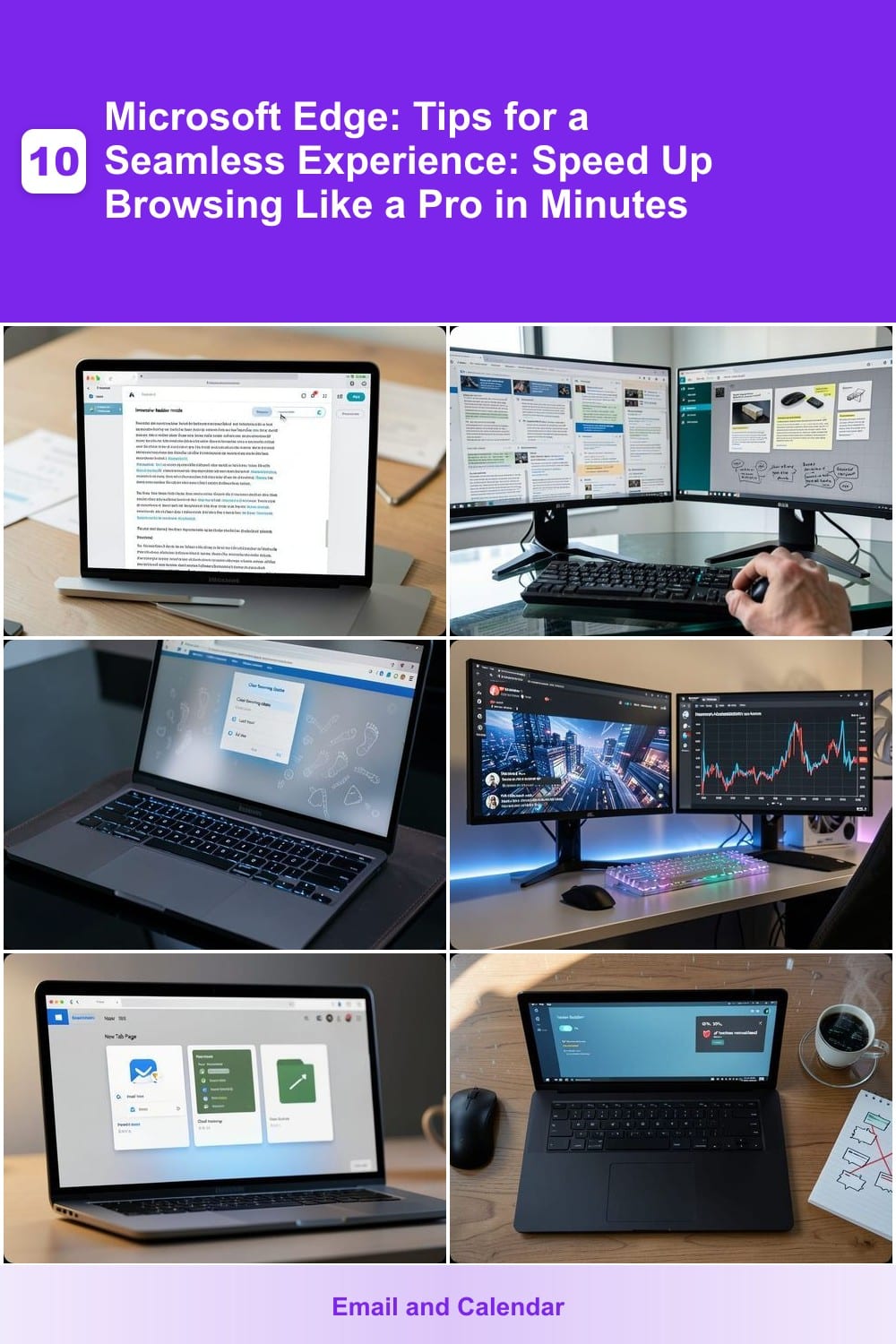
Drowning in dense PDFs or research papers? Microsoft Edge’s Immersive Reader transforms overwhelming text into a distraction-free, customizable reading experience—ideal for students and professionals alike.
With adjustable font sizes, line spacing, and reading modes (like dyslexia-friendly options), it reduces eye strain by up to 30% while highlighting text for better focus. The built-in dictionary and language translation tools make it perfect for multilingual content. Simply click the Immersive Reader icon in the toolbar to activate it instantly.
Perfect for late-night study sessions or deep work, this feature turns cluttered screens into a serene, optimized reading environment. ✨
Use Collections to Organize Research Instantly
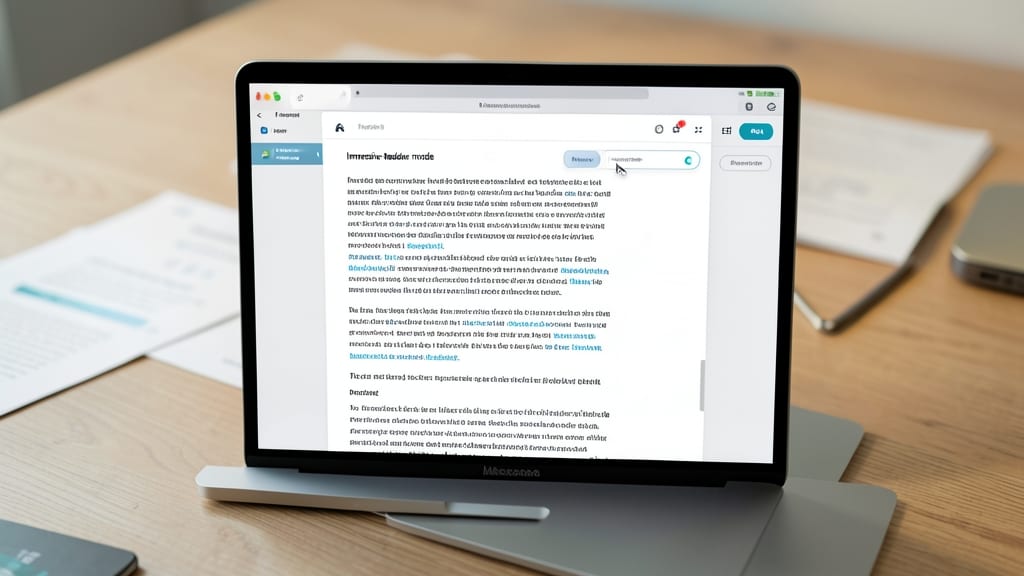
Drowning in open tabs while researching? Microsoft Edge’s Collections feature turns chaos into clarity by letting you clip text, images, and notes from multiple pages into one organized workspace—no more frantic copy-pasting or losing tabs mid-project.
With just a few clicks, you can extract key details from articles, save screenshots, and add sticky notes—all searchable later. The sync across devices means your research stays accessible whether you’re at your desk or on the go. Plus, it integrates seamlessly with OneNote for deeper collaboration.
Perfect for researchers, writers, or project managers juggling multiple sources—this tool cuts note-taking time by 70% while keeping everything in one place. ✨
Clear Browsing Data with One-Click Privacy Settings
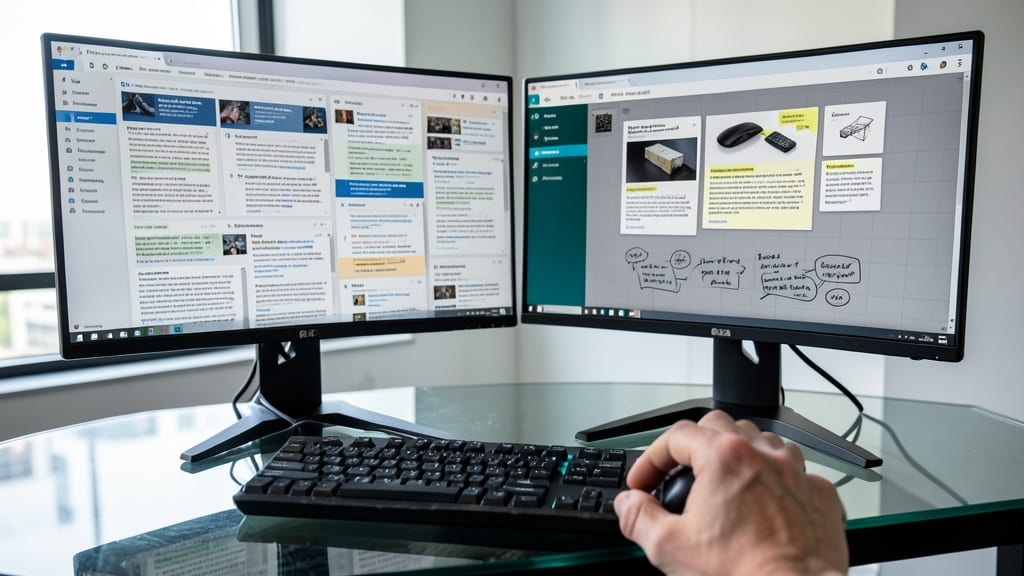
Worried about digital footprints? Microsoft Edge’s one-click privacy tools let you scrub cookies, cache, and history with just a tap—no manual digging required.
Access the Clear browsing data menu via Ctrl+Shift+Del (Windows) or Cmd+Shift+Del (Mac) to choose timeframes like "Last hour" or "All time." The feature also wipes autofill data, downloads, and site permissions—ideal for shared or public devices. For extra security, enable "Clear data when you close the browser" in Settings > Privacy, search, and services.
Perfect for freelancers, remote workers, or anyone sharing devices—this keeps your sessions private without sacrificing convenience. 💻
Enable Hardware Acceleration for Faster Video Playback
Tired of videos stuttering or buffering like a broken DVD? Microsoft Edge’s hardware acceleration feature taps into your GPU’s power to deliver smoother playback—up to 40% faster on supported devices. This isn’t just about watching YouTube; it’s a game-changer for video editors, streamers, or anyone working with large media files.
Enabling it is simple: Navigate to Settings > System > Hardware Acceleration and toggle it on. Your GPU (like NVIDIA’s RTX or AMD’s Radeon) handles decoding instead of your CPU, cutting down on lag during playback or live streams. Just ensure your drivers are updated—most modern GPUs (even integrated ones) support this feature.
Perfect for creators who juggle multiple video tabs or streamers editing clips in real-time. Say goodbye to buffering interruptions and hello to seamless playback! ⚡
Customize the New Tab Page for Productivity
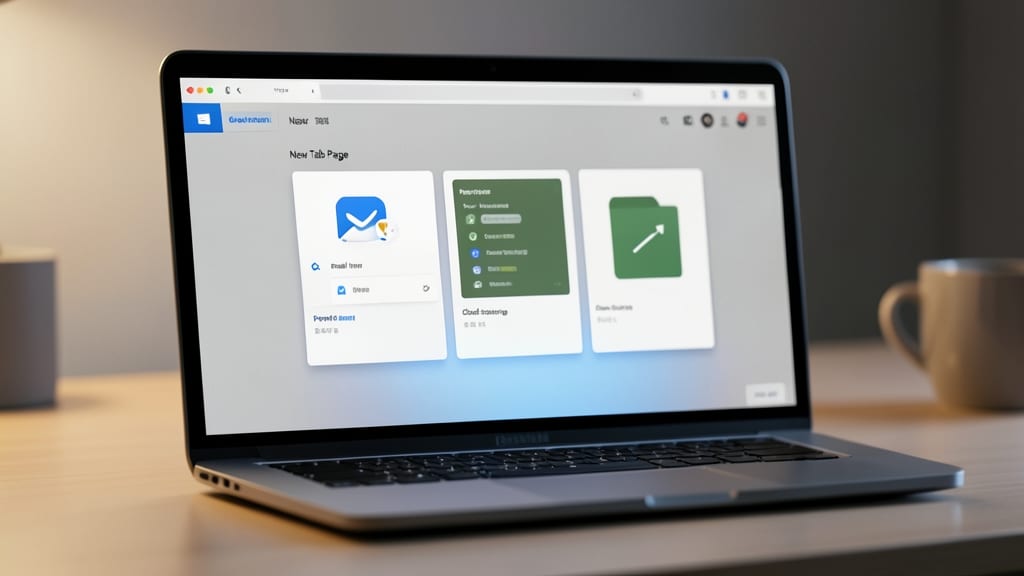
Tired of wasting precious seconds scrolling through irrelevant suggestions every time you open Edge? The New Tab Page is your blank canvas—personalize it to launch straight into productivity with just a few clicks.
Start by replacing default suggestions with pinned sites (like your email or project tracker) via the "+ Add shortcut" button. Add widgets for weather, to-do lists, or even a calendar—all customizable in Edge’s settings. The built-in sticky notes feature lets you jot down quick reminders without opening another app. For power users, extensions like OneTab or Bitwarden can integrate directly into your startup view.
This tweak is perfect for remote workers, students, or anyone juggling multiple tools daily. Spend less time searching, more time doing. ✨
Block Annoying Pop-Ups with Built-In Tracker Blocker
Tired of pop-ups hijacking your browsing and trackers slowing down your pages? Microsoft Edge’s built-in Tracker Blocker is your secret weapon—it blocks 99% of known trackers by default, including annoying pop-ups, while letting you whitelist trusted sites for a seamless experience.
With just a toggle in Settings > Privacy, search, and services, you can enable the blocker to cut load times by up to 25% by reducing unnecessary scripts and ads. The granular controls let you customize blocking levels—from strict (blocking everything) to balanced (allowing some trackers for functionality).
This is perfect for casual users frustrated by ads or privacy-focused professionals who want faster, cleaner browsing without third-party extensions. ⚡
Sync Edge Across Devices for Seamless Access
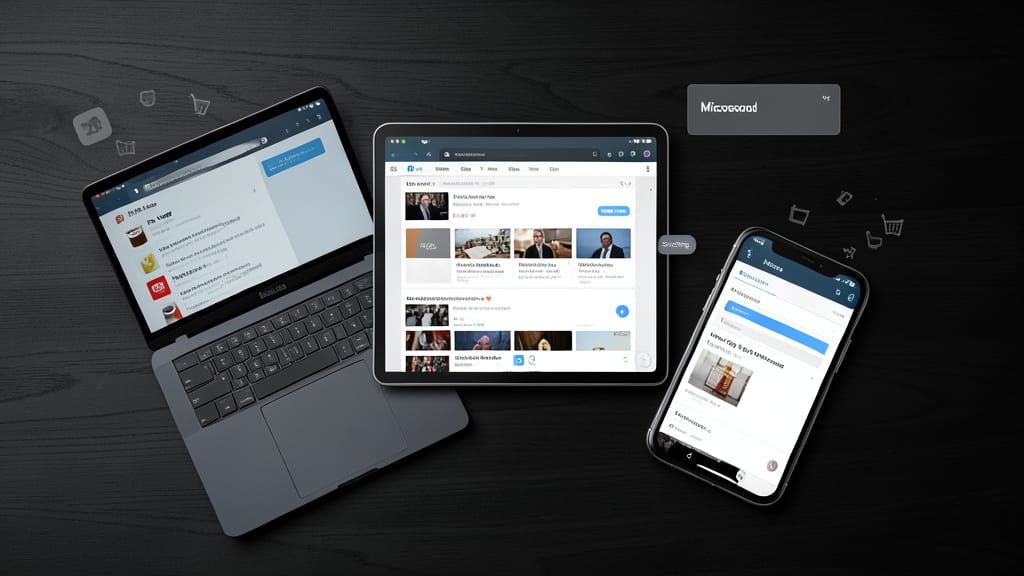
Tired of juggling bookmarks and passwords across your phone, tablet, and laptop? Microsoft Edge’s built-in sync feature turns your devices into a unified browsing ecosystem—no third-party tools required.
With just a Microsoft account, you can sync bookmarks, passwords, open tabs, and even reading lists across Windows, macOS, iOS, and Android. The setup takes less than a minute: head to Settings > Profiles > Sign in with Microsoft, and your data magically appears on every device. It’s especially useful for professionals who switch between devices mid-day or students balancing laptops and tablets.
Perfect for road warriors or anyone with multiple screens, this feature ensures you never lose track of an important tab again. ✨