
PowerPoint
PowerPoint transitions can transform a dull presentation into a dynamic, engaging experience. These seven carefully selected transition effects help maintain audience focus, emphasize key points, and create professional flow—without overpowering your content.
Fade Transition for Subtle Professionalism
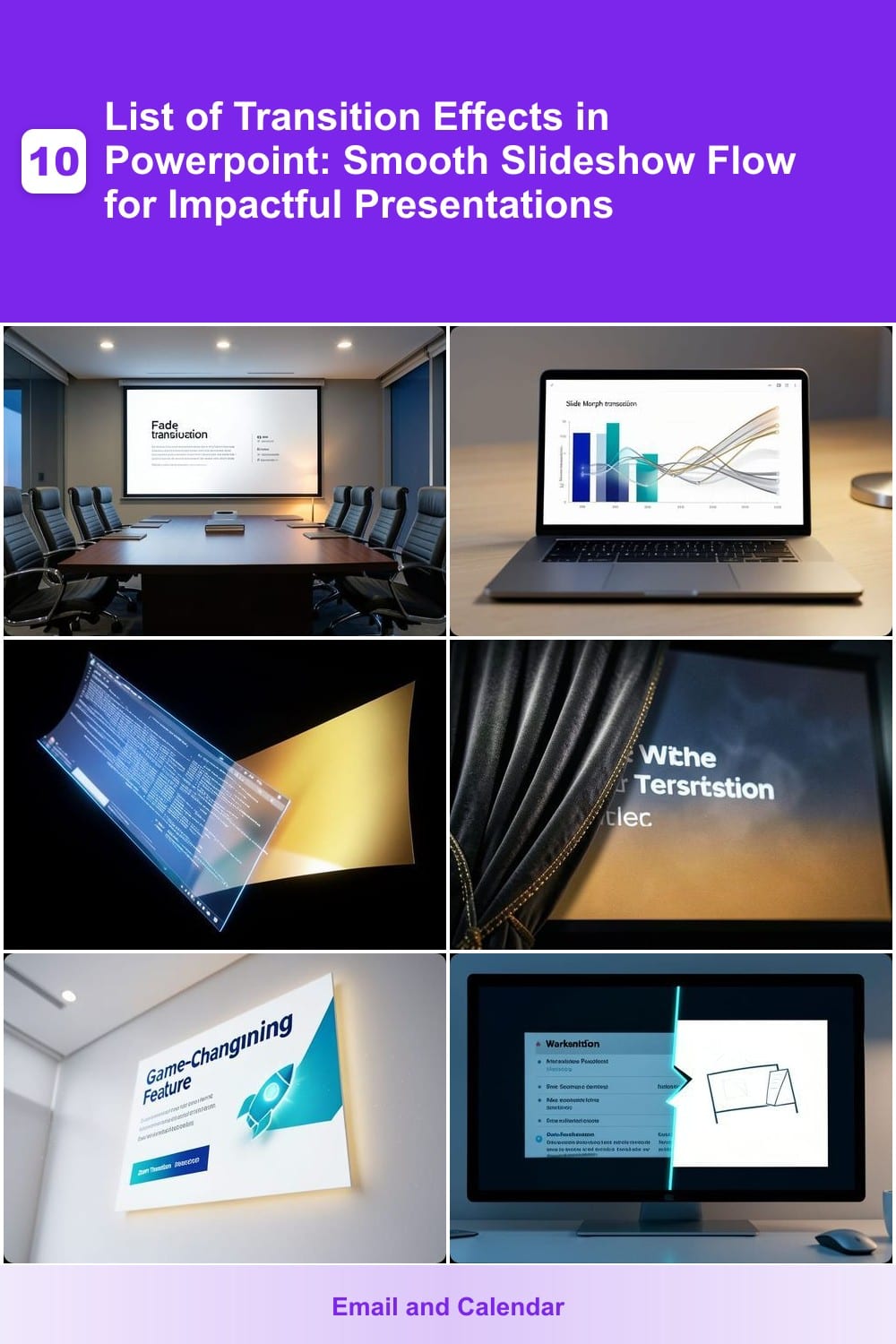
For boardroom presentations where subtle sophistication matters most, the Fade transition is the undisputed champion. Unlike flashy animations, it dissolves slides seamlessly—keeping focus squarely on your message while adding a touch of polish. Available in all modern PowerPoint versions (including 2016, 2019, and 365), it’s the default choice for executives who prioritize clarity over spectacle.
This transition works by gradually reducing opacity, creating a zero-distraction effect that feels both elegant and intentional. You can adjust the speed to match your pacing, and it pairs perfectly with solid color backgrounds or minimalist designs. Unlike morph transitions, it doesn’t risk visual clutter—ideal for data-heavy slides where smoothness trumps flash.
Perfect for quarterly reports, investor pitches, or training modules, the Fade transition ensures your content shines without competing for attention. ⚡
Slide Morph Transition for Seamless Data Visualization
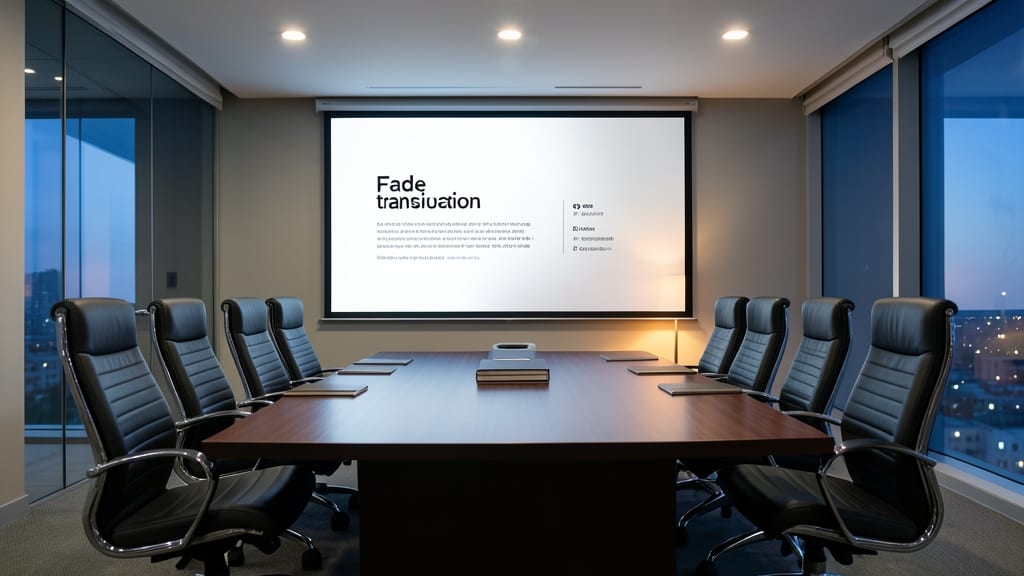
When your slides contain complex data—like shifting bar charts or evolving line graphs—you need a transition that preserves clarity while adding motion. The Slide Morph effect in PowerPoint does exactly that, transforming one visualization into another with a smooth, almost liquid animation that maintains readability.
Available in PowerPoint 365 and 2019, this transition intelligently aligns elements between slides, so your audience sees the evolution of data rather than a jarring cut. It works best with similar slide layouts (e.g., two bar charts comparing Q1 vs. Q2 sales) and supports custom timing to control the fluidity. The effect even preserves text placement, ensuring labels stay anchored during the transition.
Data analysts, marketers, and educators will love this for analytical decks where trends matter more than flashy effects. Just avoid overusing it with wildly different slide structures—keep it sleek and purposeful. ✨
Push Transition for Dramatic Emphasis
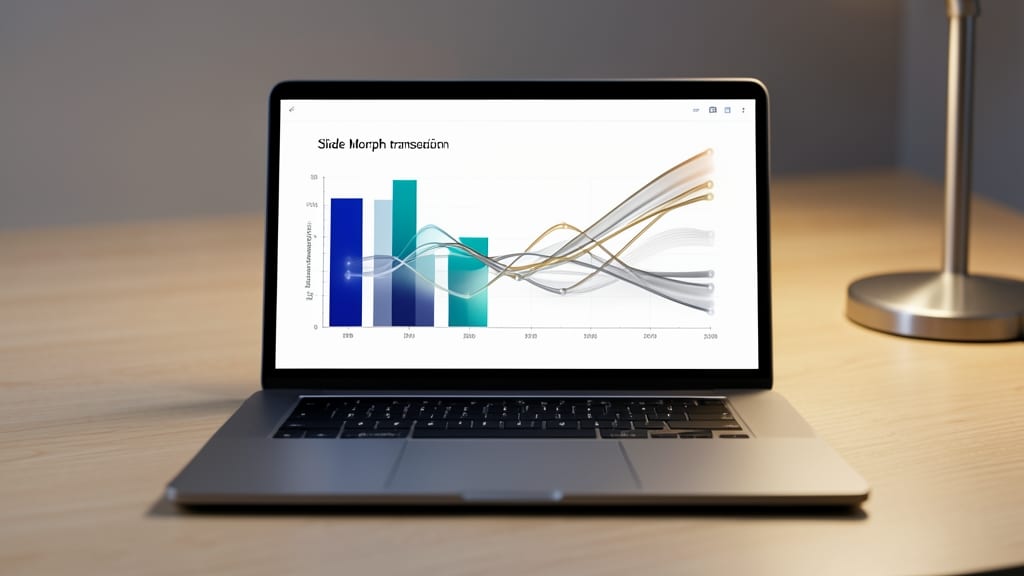
When you need to make a slide feel like the turning point of your presentation, the Push Transition delivers that cinematic punch. Unlike subtle fades or smooth morphs, this effect shoves the current slide aside—left, right, up, or down—to reveal the next with a bold, directional motion that demands attention.
Available in PowerPoint 2016 and later, the Push Transition offers four directional options (horizontal and vertical) and lets you adjust speed for dramatic flair. It’s especially effective for training modules where you want to signal a shift in topic or sales decks where you’re unveiling a key product feature. The abrupt motion creates a natural pause, giving your audience time to absorb the transition’s emphasis.
Trainers, coaches, and sales teams will love this for highlighting pivotal moments—like before a demo or after a call-to-action. Just avoid overusing it, or you’ll risk overwhelming your audience. ✨
Wipe Transition for Creative Storytelling
When your presentation needs to feel like a cinematic story, the Wipe Transition is your secret weapon. Unlike abrupt cuts or flashy morphs, this effect mimics classic film techniques—like a curtain drawing back—to guide your audience’s focus naturally through your narrative.
PowerPoint offers five wipe styles: horizontal, vertical, diagonal, and two custom angles. You can even adjust the wipe direction (left/right, up/down) and speed to control pacing. It’s especially powerful for storytelling decks, where you want to emphasize a shift in tone or scene—like transitioning from a problem to a solution with a smooth, intentional motion.
Perfect for educators, marketers, and creative professionals, this transition works best when you want to set the mood without overwhelming your content. Just avoid overusing it—like any great story, pacing matters most. ✨
Zoom Transition for Highlighting Key Moments
Need to make your audience lean in when you reveal a game-changing product feature or a bold new vision? The Zoom Transition delivers exactly that—by smoothly pulling back from your current slide to reveal the next with cinematic flair.
This effect works by creating a dynamic zoom-out (or zoom-in) that centers attention on the incoming slide, perfect for keynote speeches or product launches. You can adjust the zoom speed and direction (outward or inward) to control the impact, and it pairs well with dark-themed slides for maximum visual punch. Unlike simpler transitions, it adds a layer of excitement without overwhelming your message.
Ideal for presenters who want to command attention during pivotal moments—think startup pitches or executive updates—this transition turns ordinary slides into memorable highlights. ✨
Split Transition for Section Break Clarity
Need to signal a clear shift in your presentation without losing focus? The Split Transition is your go-to for modular content like workshops or tutorials. Unlike other transitions that blend or move slides, this one literally divides the current slide into two or more sections—each revealing parts of the next slide in sequence.
You can customize the split direction (vertical, horizontal, or diagonal) and even add a subtle shadow or glow effect for polish. The transition works best when paired with section headers or bullet-point summaries, making it perfect for breaking up dense content into digestible chunks. Best of all, it’s built into PowerPoint 2016 and later, so no extra plugins are needed.
Trainers, educators, and facilitators will love this for structuring step-by-step guides or multi-part discussions. Just avoid overusing it—keep it for key section breaks to maintain professionalism. ✨
3D Rotation Transition for Interactive Engagement
Want to turn your presentation into an interactive experience that feels like a live demo? The 3D Rotation Transition spins slides in a 360-degree space, giving your content a futuristic, hands-on feel that’s perfect for tech-savvy crowds or creative pitches.
This transition lets you rotate slides along the X, Y, or Z-axis, adding depth and dynamism. You can even customize the rotation speed and axis direction to match your presentation’s rhythm, making it ideal for showcasing product prototypes or innovative concepts where visual impact matters most.
Best for designers, developers, and marketers who want to stand out, this transition turns passive slides into an immersive journey—just don’t overuse it in formal settings. ✨